

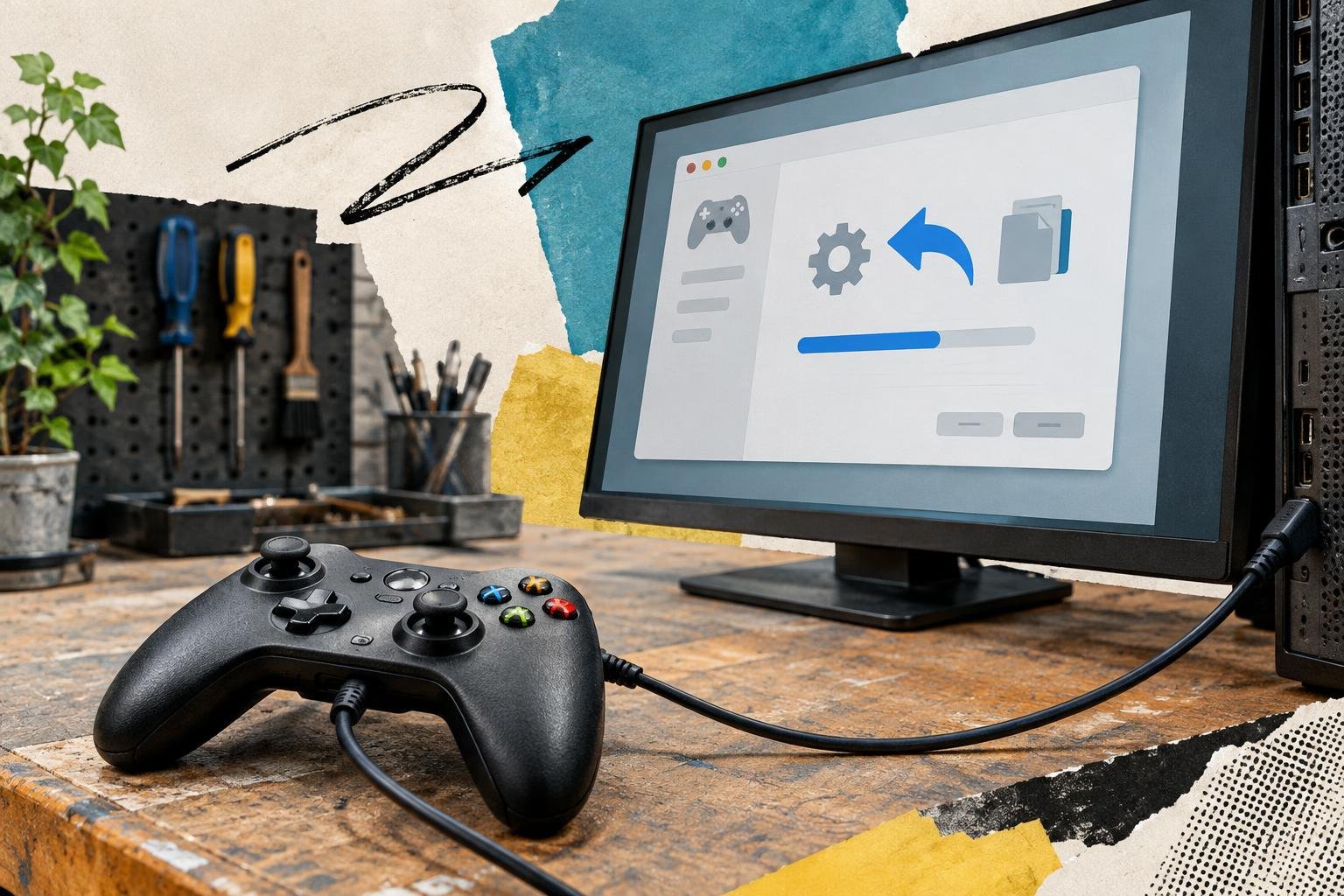
A device that worked yesterday may start misbehaving after a driver update. Your display might flicker, a printer may disappear, or a network adapter could lose its connection. When the timing points to a recent update, you can often roll back a driver in Windows to restore the version that was installed before it.
Rollback is a focused troubleshooting step: it replaces the current driver with a previous version that Windows still has available. It does not remove your personal files or undo unrelated Windows updates. The option is not always available, though, and it helps to confirm the likely cause before changing anything.
When to roll back a driver in Windows
Consider rolling back when a specific device began having problems shortly after its driver changed. Common examples include a graphics card that starts producing visual artifacts, audio that cuts out after an update, or a Wi-Fi adapter that becomes unreliable while other devices stay connected.
A driver update is not automatically the cause. A loose cable, an application setting, a Windows update, or a failing device can produce similar symptoms. Look for a clear pattern: did the problem begin after a driver update, and does it affect the device associated with that driver?
You can check the device’s driver date and version in Device Manager, but those details alone do not prove that the driver caused the issue. Windows may also install drivers in the background. Use the dates as clues, then compare them with when the symptoms began.
- Rollback may help when a device stops working or behaves differently after a driver update.
- Rollback may not help when the issue affects many unrelated devices or began before the driver changed.
- Get help before changing drivers on a work-managed computer, where an organization may control driver versions.
Prepare before changing the driver
Save open work, connect a laptop to power, and note the symptoms you want to test afterward. If possible, record the device name and its current driver version so you can describe what changed. A screenshot of the relevant Device Manager details can also be useful.
Make sure you have another way to access the computer if the affected device is essential. For example, if you are troubleshooting a network adapter, know whether you can connect through Ethernet or another adapter. If you are changing a graphics driver, check that you can still use the display if the screen briefly goes blank during restart.
It is also sensible to save important files before troubleshooting. Driver rollback is not intended to affect personal data, but a backup is useful protection whenever you are diagnosing a computer problem.
How to roll back a driver in Windows
These steps apply to Windows 10 and Windows 11. You will need an account with administrator permissions to make the change.
- Open Device Manager. Right-click the Start button and select Device Manager. You can also search for Device Manager from the Start menu.
- Find the affected device. Expand the category that contains it, such as Display adapters, Network adapters, Sound, video and game controllers, or Printers. If you are unsure which entry is relevant, check the device’s name in its documentation or in the app that reported the problem.
- Open the device properties. Right-click the device and choose Properties.
- Check the driver details. Select the Driver tab. Note the driver provider, date, and version if you want a record before making a change.
- Start the rollback. Select Roll Back Driver. If Windows asks why you are rolling back, choose the reason that best fits the problem and continue.
- Restart if prompted. A restart helps Windows load the previous driver cleanly. Save your work first, then restart the computer.
After the restart, test the same task that failed before. For example, try printing a test page, play audio through the affected output, or check whether the network connection remains stable. Give the device enough time to reproduce its usual workload rather than judging it from one quick check.
If Windows asks for administrator approval or displays a confirmation prompt, read it before proceeding. If the rollback option is unavailable, do not assume you selected the wrong device. Windows may no longer have a previous driver package to restore.
What to do if Roll Back Driver is unavailable
The Roll Back Driver button can be disabled when Windows has no earlier driver version stored for that device. This can happen after a clean driver installation, after cleanup tools remove old driver files, or when the current driver is the first version Windows has recorded. The button may also be unavailable for some devices or driver packages.
First, confirm that you opened the properties for the right device and checked the Driver tab. If the button remains disabled, use one of these alternatives:
- Install a known-good driver from the device maker. Visit the official support page for the computer or hardware manufacturer, select the exact model and Windows version, and follow its installation instructions. Avoid driver-download sites that bundle installers or promise to update every driver automatically.
- Check Windows Update’s optional driver updates. Open Windows Update in Settings and look for optional updates if that section is available. Review the listed device and driver details before installing anything.
- Use System Restore if a suitable restore point exists. A restore point may return system files and settings to an earlier state. It is broader than a driver rollback, so review what it will affect before confirming.
- Contact the computer or device manufacturer. This is especially useful for specialized hardware, business computers, and devices that require a manufacturer-specific driver package.
Do not uninstall a device just to make the rollback button appear. Uninstalling and rolling back are different actions, and removing a driver can leave you without a working connection or display until you can reinstall the right package.
Rollback, uninstall, and update are different actions
Device Manager groups several driver-management actions in one place, but they solve different problems. Understanding the difference helps avoid adding extra variables while troubleshooting.
- Roll Back Driver switches to a previous driver version that Windows has retained for that device. It is the most direct choice when a recent driver change appears to have caused the problem.
- Update Driver searches for or installs a newer driver. This may help when the current version is old or has a known issue, but updating is not the same as restoring a working earlier version.
- Uninstall Device removes the device entry or its driver package, depending on the options shown. Windows may detect the hardware again after a restart, but you may need a prepared installer if it does not.
Choose one troubleshooting change at a time and test afterward. Updating, uninstalling, and rolling back in quick succession makes it harder to tell which action helped.
Confirm whether the rollback fixed the problem
Use the device in the conditions that previously triggered the issue. If a graphics problem appeared during a game, test that game or another graphics-heavy task. If a printer failed from one application, test that application and then print from another one to see whether the problem is limited to a single program.
Check for warning icons in Device Manager, but do not treat their absence as proof that everything is working. The practical test is whether the device performs reliably. If the issue persists, write down what you observed and check other possible causes, such as a cable, application setting, connection, or hardware fault.
For broader Windows symptoms, use Reliability Monitor to review recent system errors. Its event history can help you compare when failures started with when you changed a driver, though it may not identify the exact cause by itself.
Keep the working driver and avoid repeat problems
If rollback restores normal operation, note the device name and the version that worked. Keep the manufacturer’s official installer if you downloaded one, and avoid immediately reinstalling the same update until you understand why the newer version caused trouble. A vendor may provide a corrected package later, but there is no need to change a stable setup without a reason.
If the same driver keeps returning through automatic updates, check the update details before installing it again. On a managed computer, ask your IT administrator rather than trying to block updates yourself. On a personal computer, use the device maker’s support guidance for the specific model and driver.
Driver rollback works best as a targeted response to a change you can connect to a specific device. Check the symptoms, make one careful adjustment, restart when needed, and test the result. If Windows has no older driver to restore, a verified manufacturer package or a suitable restore point may offer the next safest path.