

When a video buffers or a download crawls, it’s tempting to blame your internet provider. But slow Wi-Fi can come from several places: the connection entering your home, the router, the wireless signal, or a single device. Testing each layer in order can help you find the cause without changing settings at random.
This guide explains how to troubleshoot slow Wi-Fi with a few simple comparisons. You’ll check whether the problem affects one device or every device, compare Wi-Fi with a wired connection, and then work through common signal and router issues.
How to troubleshoot slow Wi-Fi one step at a time
Start by describing the problem as precisely as you can. “The internet is slow” could mean a web page takes a long time to open, a video keeps buffering, an online game lags, or files take too long to download. Those symptoms can point to different causes.
Also note when the trouble happens. A connection that slows only in one room suggests a coverage problem. Slowdowns at a particular time may involve network congestion, either inside your home or upstream. A problem that began after a router change, software update, or new device appeared may have a more direct trigger.
1. Check whether the issue affects one device
Test the same task on another phone, computer, or tablet connected to the same Wi-Fi network. If only one device is slow, the router and internet connection may be working normally. Restart that device, confirm it’s connected to the intended network, and close apps that may be downloading or syncing in the background.
On the affected device, check whether a virtual private network, proxy, security filter, or custom DNS setting is enabled. These services can change how traffic travels or how quickly a site is reached. Temporarily disconnect from a VPN as a test, then reconnect it afterward if you rely on it. Avoid disabling security software broadly just to compare speeds.
If every device is affected, continue testing the shared parts of the connection: Wi-Fi coverage, router, modem, and service from your provider.
2. Compare Wi-Fi near the router with Wi-Fi in the problem area
Stand a few feet from the router and run the same test you used before. Then repeat it in the room where the connection feels slow. Keep the device and test method the same. A strong result near the router but a poor one farther away points toward signal coverage or interference, rather than a general service outage.
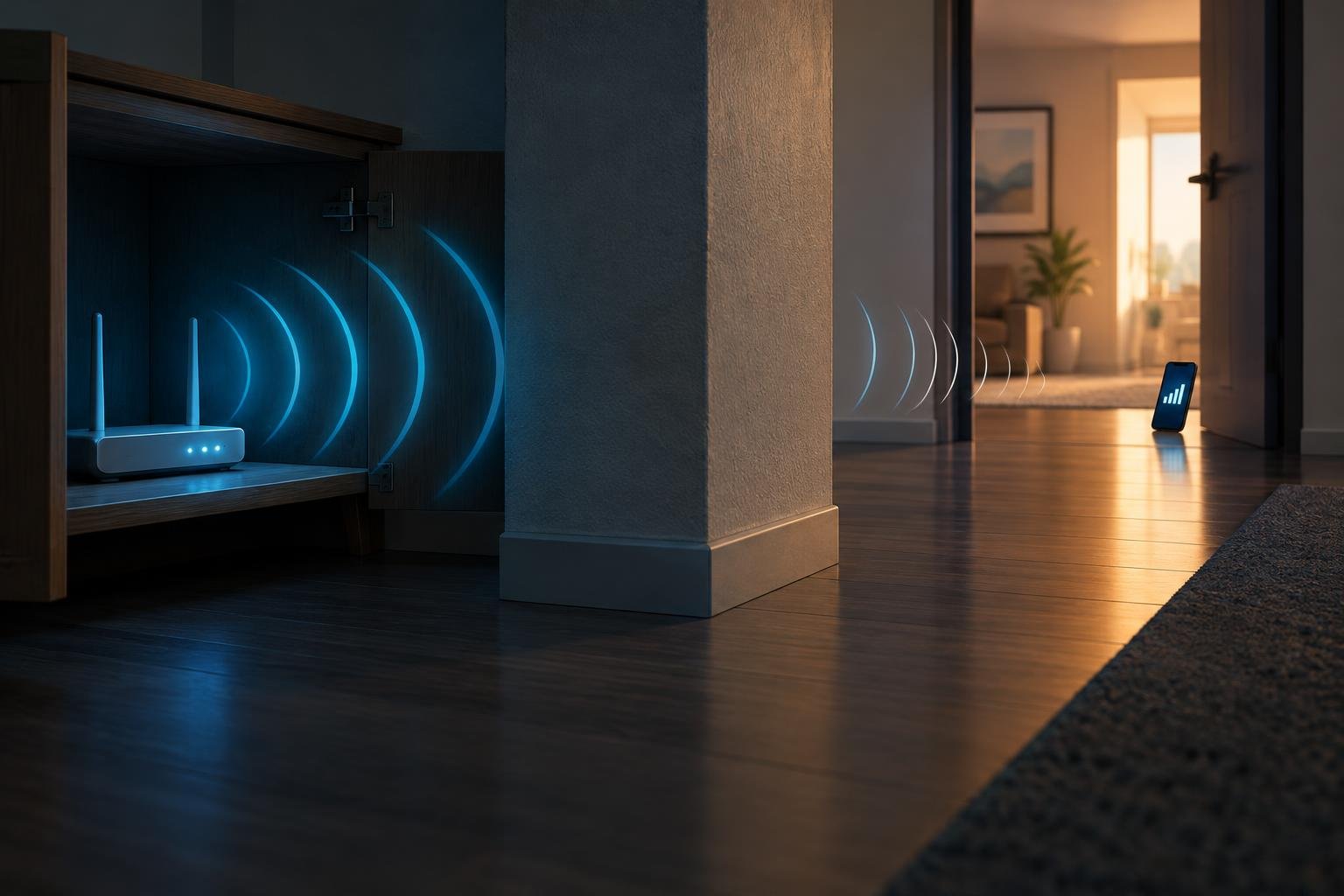
Walls, floors, large appliances, metal shelving, and cabinets can weaken wireless signals. The router’s location matters, too. A router tucked behind a television, inside a cupboard, or near the floor may have a harder time reaching the rest of the home. Try placing it in an open, central location, elevated from the floor and away from large obstructions.
If moving the router isn’t practical, test from a few different spots. This can reveal whether one wall or corner is the main obstacle. A mesh system or access point may help in a large or difficult layout, but first make sure the router is placed sensibly and the problem is truly coverage-related.
3. Use a wired test to separate Wi-Fi from internet service
If you have an Ethernet cable and a device with a network port, connect that device directly to the router. Turn off its Wi-Fi so you know the test is using the cable. Run a speed test or try the activity that was giving you trouble, then compare the result with a nearby Wi-Fi test.
A wired connection that works well while Wi-Fi remains slow suggests a wireless issue. If both are poor, the problem may involve the router, modem, internet service, or other traffic on the network. Some service plans or devices have limitations, so use the wired test as a comparison rather than treating one number as a perfect measure of your plan.
If you can’t test over Ethernet, compare several devices near the router and check whether they’re all affected. That won’t isolate the cause as clearly, but it still helps distinguish a single-device issue from a shared connection problem.
Check router load, placement, and settings
Once you know the slowdown affects multiple devices, look at what’s happening on the home network. A large game download, cloud backup, video stream, or software update can use much of the available connection. Pause one heavy task and test again. If performance improves, the router may not be faulty; the network may simply be busy.
Some routers offer an app or admin page that lists connected devices and their activity. Use it to spot unfamiliar devices or one transferring much more data than expected. Don’t assume a device is unauthorized just because its name is unfamiliar. Phones and smart home equipment may appear under a manufacturer name or a generic identifier.
Restart equipment carefully
A restart can clear a temporary fault, but do it in a controlled way so you can tell whether it helped. Save any work that depends on the connection. Restart the router using its power button or unplug it, wait briefly, and reconnect it. Allow it time to finish starting before testing. If you have a separate modem, follow its maker’s restart instructions as well.
A restart is different from a factory reset. A factory reset erases settings such as the Wi-Fi name and password and may require you to configure the router again. Don’t use that as a routine troubleshooting step unless you’re prepared to restore the settings or have instructions from your provider or device maker.
Check the Wi-Fi band and network name
Many routers provide more than one Wi-Fi band. A higher-frequency band can offer faster performance at shorter range, while a lower-frequency band often reaches farther but may be more crowded. The best choice depends on the router, device, distance, and surrounding networks.
If your router shows separate network names for its bands, compare them from the same location. If it uses one name for both, the router may choose a band automatically. Don’t split or rename networks unless you understand how your devices reconnect and are comfortable changing router settings. A quick test is more useful than changing several options at once.
For a home with crowded neighboring networks, changing the wireless channel may help, but available controls vary by router and region. Start with the router’s automatic channel selection if it offers one. Record the original setting before making a manual change so you can restore it if performance gets worse.
When slow Wi-Fi may be an internet service problem
If a wired test is also slow across multiple devices, check whether the modem or router reports an alert or an unusual connection status. Restart equipment once, then repeat the test. You can also compare performance at different times and note whether the trouble affects all devices or only certain online services.
Some problems are specific to a site, app, or route across the internet. If one service is slow while other sites work normally, the issue may not be your Wi-Fi. Try the same service on another device, and check whether other household connections behave similarly. Avoid changing router settings based on one website’s failure alone.
Contact your internet provider if the wired connection remains poor after a restart, the modem shows a connection warning, or service drops repeatedly. Share useful observations: when the issue started, which devices are affected, whether Ethernet was tested, and whether the problem occurs at specific times. This gives support a clearer starting point than a single speed-test result.
A practical troubleshooting order
To avoid chasing several possible causes at once, work through these checks in order:
- Test the same task on another device.
- Compare performance near the router and in the problem area.
- Pause downloads, backups, or streams that may be using the connection.
- Test Ethernet if you have the equipment.
- Restart the router and modem according to their instructions.
- Review router placement, connected devices, and Wi-Fi band.
- Contact your provider if wired performance is still poor across devices.
Change one thing at a time and repeat the same test after each change. That way, you can tell whether moving the router, pausing a download, or switching bands made a difference. A careful comparison often identifies the right fix before you spend money on a new router or range extender.