

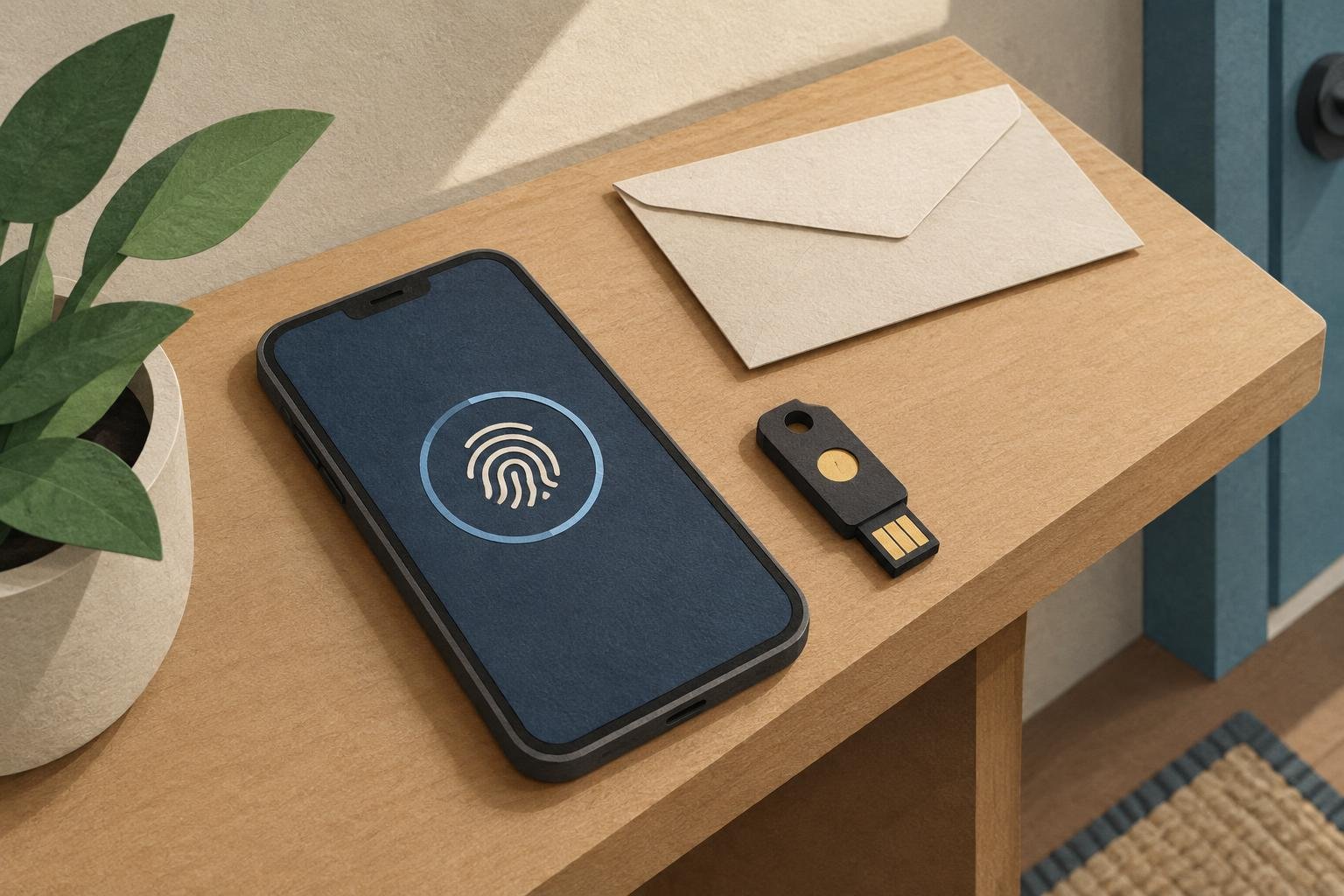
Passkeys can make sign-ins quicker and harder to phish, but switching without a recovery plan can leave you stranded if a device is lost or replaced. To set up passkeys safely, start with an account you can recover, save the passkey in a place you understand, and test another way back in before relying on it.
A passkey is a digital credential used to prove that you control an account. Instead of typing a shared secret, you approve a sign-in with a device unlock method such as a fingerprint, face scan, or PIN. The service checks a cryptographic response; it does not receive your fingerprint or device PIN.
The steps vary by service and device, but the planning is much the same. This guide covers where passkeys live, how to add one, how to check that it works, and what to do before a device disappears.
Understand where your passkey is stored
Before adding a passkey, find out which password manager or device account will keep it. That choice affects which devices can use it and how you recover access later.
- Synced passkeys are stored in an account-based password manager and can be available on other compatible devices signed in to that same account. The service may sync them through its own cloud system.
- Device-bound passkeys stay on a particular device or security key. They can be useful for keeping a credential separate from your other devices, but you need a backup route if that device is lost.
When you create a passkey, your browser or operating system may ask where to save it. Read that prompt rather than clicking through automatically. A passkey saved to a password manager you never use will be hard to find when you need it. Likewise, a passkey saved only on a phone may not be available on a computer unless the devices support a compatible sign-in flow.
Passkeys are tied to the service’s domain, which helps protect against lookalike sign-in pages. That protection does not make every account recovery process safe, though. A weak recovery email or a compromised password manager can still create risks.
How to set up passkeys on an account
Use the service’s official app or type its known address into your browser. Avoid starting from a link in an unexpected message. If the account has an authenticator app or another second factor, keep it available while you make the change.
- Check your recovery details. Confirm that the account’s recovery email and phone number are current and that you can access them. Review any backup codes or account recovery options the service provides.
- Open the security settings. Look for a section named Security, Sign-in methods, or Passkeys. Labels differ, so use the service’s settings search or help pages if you cannot find it.
- Choose to add a passkey. The device may ask you to unlock it and select a destination, such as a password manager, built-in credential store, or hardware security key.
- Confirm the save location. Make sure the prompt names a storage option you can access on the devices you intend to use. If the choice is unclear, cancel and check the device or password manager settings first.
- Name the passkey clearly. If the service lets you label it, use a practical name such as “personal phone” or “USB security key.” A useful label makes later cleanup easier.
- Test a fresh sign-in. Sign out, or open a private browser window, then sign in using the passkey. Complete the device prompt and confirm you reach the intended account.
Do not remove a working password or second factor just because the first passkey was created. Keep your existing sign-in method until you have tested the passkey and verified recovery options. Some services let passkeys work alongside passwords; others offer settings to reduce or remove password use.
Make a recovery plan before you need one
Passkeys reduce the need to remember a password, but they do not eliminate account recovery. Your plan should cover a lost phone, a replaced computer, a broken security key, and loss of access to the account that syncs your credentials.
For an account you care about, consider adding a second passkey on a separate device or security key. The second credential should not be stored only on the same device as the first. If your service offers one-time backup codes, store them somewhere separate from the device you use to sign in. Treat them like account credentials: anyone who finds them may be able to use them.
Review the service’s recovery process while you are still signed in. Check whether it depends on a recovery email, a phone number, another signed-in device, or support review. Update stale contact details. If you use a password manager, confirm you know how to recover access to that manager too, since it may hold passkeys for many accounts.
A simple recovery checklist can help:
- Can you unlock the account that stores synced passkeys?
- Can you reach the account’s recovery email or phone?
- Do you have a second passkey or another working sign-in method?
- Are backup codes stored somewhere other than your everyday phone?
- Do you know how to remove a passkey from a device you no longer own?
Answer these questions for your primary email account first. Email often controls password resets and account notifications elsewhere, so losing it can make other recoveries harder.
Use passkeys across phones and computers
When a passkey is synced through a password manager, the same credential may be available across devices after you sign in to that manager. Confirm that syncing is enabled and that each device is using the intended account. Do not assume that a passkey created on one device has automatically appeared on another.
Some sign-in flows let a computer display a QR code that you scan with a phone. The phone then approves the sign-in, often over a nearby connection. This can be useful when the passkey is on your phone but the site is open on another device. Follow the on-screen prompts and check that the site address is correct before approving.
A hardware security key can provide another way to sign in, especially when you want a credential that is not stored on a phone. Check that the service supports the key and that your devices have a compatible connection, such as USB or NFC. If you use a key as your only passkey, losing or damaging it can cause trouble. Add a backup key or retain another recovery method.
Keep a mix of methods only if you can manage them. Extra credentials are useful as backups, but old or unfamiliar devices should not remain linked indefinitely. Review the account’s passkey list periodically, remove entries for devices you no longer control, and check that each remaining label makes sense.
Troubleshoot common passkey problems
The passkey does not appear
Check that the device is signed in to the password manager or account where the passkey was saved. Confirm syncing is enabled, then verify that the service entry exists in the manager. If you created a device-bound passkey, try the device where you originally enrolled it or use another sign-in method to add a second one.
The device offers the wrong account
More than one account may be saved for the same service. Select the intended account in the sign-in prompt, then check the service’s passkey list for duplicate or unclear entries. Renaming credentials can help, but do not delete one until another sign-in route has been tested.
The biometric prompt fails
A fingerprint or face scan is a convenient way to unlock a device, not the passkey itself. Use the device’s PIN or other approved unlock method if the biometric check fails. If the device is locked or its unlock method has changed, follow the operating system’s recovery process rather than repeatedly guessing.
You no longer have the original device
Try the account’s recovery options or another passkey before contacting support. Once you regain access, remove the lost device’s passkey and add a replacement. If you suspect the device was stolen, also review active sessions and sign-in alerts, and revoke access where the service allows it.
Adopt passkeys one account at a time
Start with a service where you can easily verify the result, then repeat the process for important accounts. For each one, record where the passkey is stored, test a fresh sign-in, and confirm the recovery route. This small routine helps distinguish a passkey you have actually tested from one you merely created.
Keep a password or second factor available until you understand how the service handles passkeys and recovery. Once you have a reliable backup, you can decide whether to change other sign-in settings. The goal is not simply to add a newer credential. It is to make signing in easier without making account access depend on a single device.